
You installed a valid certificate, yet your browser still refuses to show a secure icon. This is the classic no padlock even with SSL problem, and it still catches WordPress owners off guard in 2026. The good news is that the cause has not changed much since 2019. However, the way browsers display it has changed a lot, so the fix now needs a slightly different checklist.
This guide walks you through what changed, why the icon disappears, and exactly how to restore trust signals on your site.

What “No Padlock” Actually Means in Chrome Today
First, a quick reality check. If you are using Chrome, you will not see a padlock at all anymore, even on a perfectly secure site. Chrome dropped the classic lock icon back in version 117 and replaced it with a neutral “tune” icon that looks like two small sliders. Google made this change because most users misunderstood what the padlock meant, and the icon wrongly implied a page was trustworthy rather than simply encrypted. As a result, “no padlock” today usually means one of two things:
- The tune icon shows a warning triangle or “Not Secure” label instead of a neutral icon, or
- Firefox, Safari, or Edge users still see a broken, greyed-out, or crossed-out lock.
Either way, the underlying cause is the same, so the rest of this guide applies to both cases.
Why the Padlock or Secure Icon Disappears
Even if your certificate is valid, the browser still checks every single resource on the page before it marks the connection fully secure. Consequently, one insecure request is enough to break the whole thing. Here are the usual suspects.
1. Mixed Content
This is still the number one cause. Your page loads over HTTPS, but an image, script, stylesheet, or iframe loads over plain HTTP. Because that one resource travels unencrypted, the browser flags the entire page as only partially secure. Old WordPress posts are especially prone to this since images and embeds were often saved with hardcoded http:// links before the site moved to HTTPS.
2. An Incomplete Certificate Chain
If your host installed the certificate without the intermediate certificate, some browsers will not be able to validate the full chain. Therefore the connection looks secure to you but broken to a visitor.
3. Certificate Expiry
This is becoming more common in 2026. Certificate authorities are shortening the maximum validity period for TLS certificates to 200 days starting March 2026, so certificates that used to last a year now need renewing roughly twice as often. Sites without automatic renewal are far more likely to slip past expiry unnoticed.
4. Browser Cache
Sometimes none of the above applies. The fix was already made, but the browser cached the old, insecure version of the page. A hard refresh usually clears this up.
New in 2026: Chrome Is Warning on Plain HTTP Too
Beyond the missing padlock, Chrome is rolling out a bigger change this year. Chrome began showing a bypassable warning before loading HTTP pages for Enhanced Safe Browsing users starting in April 2026, and this expands to all Chrome users in October 2026. In other words, if any part of your site still loads over plain HTTP, visitors will soon see a warning before the page even loads, not just a missing icon. This makes fixing mixed content and enforcing HTTPS site-wide more urgent than it was in 2019.
How to Find the Exact Broken Resource
Do not guess. Instead, let the browser tell you exactly what is wrong.
- Open your page in Chrome and click the tune icon in the address bar. If it lists mixed content or an insecure connection, click through for details.
- Right-click the page, choose Inspect, then open the Console tab. Reload the page and look for lines starting with “Mixed Content.”
- Switch to the Network tab, reload again, and filter for blocked or HTTP requests.
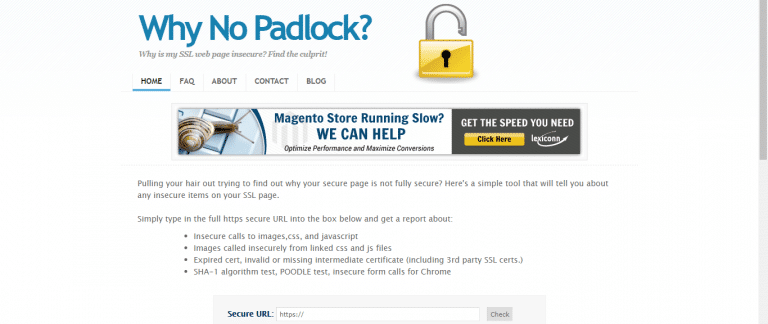
- For a full site scan instead of a single page, run your domain through a dedicated mixed content checker such as WhyNoPadlock . Paste in the full HTTPS URL of the page you want to check, and it will list every insecure image, script, or stylesheet call, plus any certificate chain issues, in one report.
How to Fix It on WordPress
Once you know which URLs are the problem, fixing them on WordPress usually comes down to five steps.
- Update your site addresses. In Settings > General, confirm both the WordPress Address and Site Address use
https://. - Search and replace old HTTP links in the database. Old posts, widgets, and theme options often store hardcoded
http://image or link paths. A plugin like Better Search Replace, or a WP-CLI search-replace command, fixes these in bulk without editing every post by hand. - Check your theme and plugin files. Some themes hardcode asset URLs or third-party embeds. Update these to
https://or, better, use protocol-relative or relative paths so they inherit the page’s protocol automatically. - Force HTTPS at the server level. Add a redirect rule in your
.htaccessfile so every HTTP request 301-redirects to HTTPS. This closes the door on anyone linking to the old insecure version of a page. - Enable HSTS once everything is clean. HTTP Strict Transport Security tells browsers to only ever connect to your site over HTTPS, even if a visitor types
http://by mistake. Turn this on only after you have confirmed there is zero mixed content, because it is hard to reverse quickly.
After making changes, clear your caching plugin and CDN cache, then reload the page in an incognito window to confirm the fix actually took effect.
Quick Answers (FAQ)
Does no padlock mean my site is not secure?
Not necessarily. It usually means one resource on the page still loads over HTTP while the rest of the page is encrypted. The certificate itself is often fine.
Why doesn’t Chrome show a padlock at all anymore?
Chrome replaced the padlock with a neutral tune icon in 2023 because research showed most users did not understand what the lock represented. A warning label or triangle still appears when a connection genuinely has a problem.
Will a missing padlock hurt my SEO rankings?
Google has used HTTPS as a ranking signal since 2014, and mixed content warnings also increase bounce rates because visitors leave when they see a security warning. So while the icon itself is not a direct ranking factor, insecure resources and visitor distrust both work against you indirectly.
How often do I need to renew my SSL certificate in 2026?
Maximum certificate validity is dropping to 200 days from March 2026, so plan on renewing roughly every six to seven months unless your host automates it for you.
In Short
A missing padlock is almost never about your certificate being invalid. It is nearly always a leftover HTTP link hiding somewhere in your database, theme, or plugin settings. Scan your site, fix the mixed content, force HTTPS redirects, and enable HSTS once you are clean. If you are running WooCommerce, this is worth pairing with a broader look at WooCommerce performance optimization, since both projects usually touch the same theme files. And if your current host is making certificate renewal harder than it should be, our guide to the fastest WordPress hosting for high traffic sites covers hosts that handle this automatically.
Still stuck after working through this checklist? A properly configured SEO plugin can also flag some mixed content issues as part of its site health checks, which is a useful second opinion before you go digging through code by hand.
If you would rather have someone else run the audit and fix it for you, get in touch and request a quote.
You might be interested in this topic as well:
1. BEST SEO PLUGINS FOR WORDPRESS WEBSITES
2. HOW TO DOWNLOAD SHUTTERSTOCK IMAGES FOR FREE?
3. FREE WEB DESIGN RESOURCES WEBSITE TO BOOKMARK