
WordPress Malware Removal Service: The Complete Guide to Cleaning and Protecting Your Site
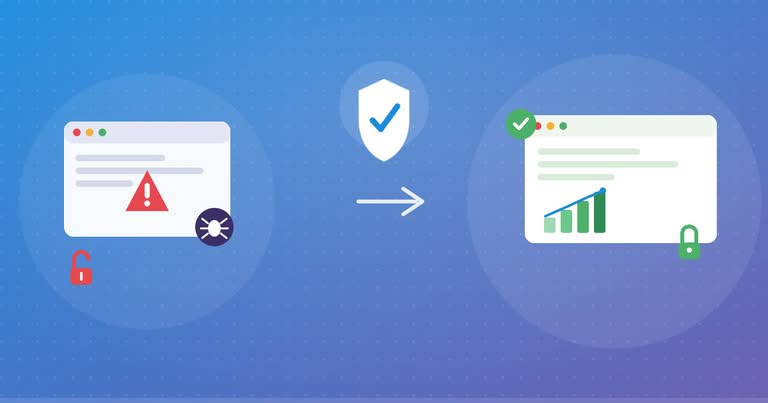
A hacked WordPress site rarely announces itself with a warning banner. Instead, you notice strange redirects, a spike in server load, or an email from Google Search Console that says your site “may be hacked.” At that point, panic sets in, and most site owners start searching for a WordPress malware removal service to fix the damage before Google blacklists their domain.
This guide walks you through both paths. First, you will learn how to detect and remove WordPress malware yourself using free and paid security plugins. Then, you will see when it makes more sense to bring in a professional WordPress malware removal service instead of risking further damage to your site.
How Do You Know Your WordPress Site Has Malware?
Malware infections do not always look dramatic. Many hackers prefer to stay hidden so they can keep exploiting your server for as long as possible. However, several warning signs tend to show up consistently.
- Your site redirects visitors to spam, gambling, or adult websites without warning.
- Google Chrome or Search Console flags your site with a “This site may be hacked” or “Deceptive site ahead” message.
- Unfamiliar admin users appear in your WordPress dashboard.
- Your hosting provider suspends your account for “malicious activity” or resource abuse.
- Page load times increase dramatically because malicious scripts are running in the background.
- New files appear in your theme or plugin folders that you never uploaded.
- Search results show your site title and description replaced with pharmaceutical or spam keywords, a classic symptom of a Japanese SEO spam hack.
If you notice even one of these signs, treat it as urgent. Malware spreads quickly across a WordPress install, and it can also spread to other sites on shared hosting.
Step-by-Step: How to Remove Malware From WordPress Yourself
If you are comfortable working with files, databases, and a bit of code, you can attempt the cleanup yourself. Follow these steps in order, because skipping ahead often means missing hidden backdoors that reinfect the site later.
1. Take the Site Offline (Carefully)
Before you touch anything, put the site in maintenance mode or restrict access through your hosting control panel. This step prevents the malware from spreading further and stops it from serving malicious content to new visitors while you work.
2. Back Up Everything
Even a hacked backup is useful for forensic comparison later. Download a full copy of your files and database before making changes, and store it somewhere outside your hosting account.
3. Scan With a Security Plugin
Install a reputable WordPress security plugin and run a full scan. Most tools compare your core files against the official WordPress repository to flag anything that has been altered or injected. We cover the best options for this in the comparison table below.
4. Identify and Remove Malicious Code
Malware often hides in three places: theme files (especially functions.php), plugin files, and the wp-config.php file. Look for obfuscated code that uses functions like eval(), base64_decode(), or gzinflate(). These functions are legitimate in rare cases, but attackers use them constantly to disguise malicious scripts.
5. Check the Database for Injected Content
Malware does not only live in files. Attackers frequently inject spam links or scripts directly into the wp_posts and wp_options tables. Search your database for unfamiliar <script> tags or suspicious URLs and remove them carefully.
6. Remove Unknown Admin Users and Reset Credentials
Delete any WordPress user accounts you do not recognize, then reset every password, including your hosting account, FTP, database, and WordPress admin login. Change your secret keys in wp-config.php as well, since this instantly invalidates old login sessions.
7. Update Everything
Outdated WordPress core files, themes, and plugins are the single biggest cause of infections. Once the site is clean, update everything to the latest version and remove any plugins or themes you no longer use.
8. Request a Google Review
If your site was blacklisted, submit a review request through Google Search Console after confirming the malware is fully removed. This process can take a few days, so patience matters here.
If any of these steps feel overwhelming, that is a reasonable place to stop and bring in professional help instead of risking an incomplete cleanup.
Best WordPress Malware Removal Plugins
The right plugin makes DIY cleanup far more manageable. Below are five of the most trusted options, each with a different strength depending on your budget and technical comfort level.
Wordfence Security
Wordfence Security is one of the most widely used WordPress security plugins, and it combines a firewall with a malware scanner that checks core files, themes, and plugins against known signatures. The free version already includes real-time threat defense, though automatic malware removal requires the premium tier.
Sucuri Security
Sucuri Security focuses heavily on monitoring and alerting, and it pairs well with Sucuri’s separate cloud-based firewall and cleanup service. Many agencies recommend it because it also blocks attacks at the DNS level, before traffic even reaches your server.
MalCare
MalCare is built specifically for one-click malware removal, and it uses server-side scanning rather than relying on your site’s own resources. This makes it a strong choice for larger sites that cannot afford scan-related slowdowns.
iThemes Security
iThemes Security (Solid Security) takes a prevention-first approach with features like brute-force protection, two-factor authentication, and file change detection. It is not primarily a removal tool, but it is excellent for stopping reinfection after cleanup.
WP Cerber Security
WP Cerber Security offers a lighter-weight alternative with a strong firewall and login protection system, making it a good fit for smaller sites that want solid coverage without a heavy plugin footprint.
Plugin Comparison Table
| Plugin | Free Malware Scan | Auto Malware Removal | Firewall Included | Best For |
|---|---|---|---|---|
| Wordfence Security | Yes | Premium only | Yes (free) | All-around protection and DIY scanning |
| Sucuri Security | Yes | Paid add-on service | Yes (cloud-based, paid) | Sites needing DNS-level protection |
| MalCare | Yes | Yes (paid plans) | Yes | Fast, one-click cleanup on busy sites |
| iThemes (Solid Security) | Limited | No | Yes | Preventing reinfection after cleanup |
| WP Cerber Security | Yes | No | Yes | Lightweight sites on a budget |
None of these plugins guarantee a perfect cleanup on their own. Automated scanners are excellent at catching known malware signatures, but sophisticated attackers write custom code that evades detection. This is exactly the gap a professional WordPress malware removal service is built to close.
When DIY Cleanup Is Not Enough
There is no shame in stepping back from a manual cleanup. In fact, several situations make DIY removal genuinely risky.
- The malware keeps coming back after you clean it, which usually means a hidden backdoor was missed.
- Your site has been blacklisted by Google or your hosting provider, and downtime is costing you traffic or revenue.
- You run an online store, and a delayed fix means lost sales or exposed customer payment data.
- You are not confident editing PHP files or database tables directly, since one wrong edit can take the entire site down.
- Multiple sites on the same server were affected, which points to a deeper server-level compromise.
In these cases, a professional WordPress malware removal service typically resolves the issue faster and more thoroughly, because experienced developers know exactly where attackers tend to hide backdoors that automated scanners miss.
Why Choose a Professional WordPress Malware Removal Service
By Freelance WordPress Developer, WordPress malware removal is handled manually, not just through automated scans. That distinction matters because most reinfections happen when a scanner clears the visible symptoms but misses a backdoor buried deep in a theme file or a fake plugin folder.
Here is what a thorough professional cleanup typically includes:
- A full manual audit of core files, themes, plugins, and the database, not just an automated signature scan.
- Removal of backdoors, hidden admin accounts, and malicious cron jobs that scanners commonly overlook.
- Hardening steps after cleanup, including firewall setup, login protection, and file permission fixes, so the same vulnerability cannot be exploited again.
- A Google blacklist removal request once the site is confirmed clean.
- A post-cleanup security report explaining how the site was infected in the first place.
This combination of manual review and preventive hardening is what separates a lasting fix from a temporary patch. If your site has already been cleaned once and reinfected, this is usually why.
How Much Does WordPress Malware Removal Cost?
Pricing varies depending on the severity of the infection and whether ongoing protection is included. As a general guide:
- Basic plugin-based scanning tools range from free to around $10 to $30 per month for premium tiers.
- One-time professional cleanup services typically range from $100 to $400, depending on how deeply the malware has spread.
- Managed security and monitoring plans, which include ongoing scans and firewall protection, often run $20 to $50 per month.
Sites with e-commerce functionality or large traffic volumes usually justify the higher end of that range, since downtime and data exposure carry real financial risk.
How to Prevent Future WordPress Malware Infections
Cleaning up an infection is only half the job. Once your site is clean, these habits keep it that way.
- Keep WordPress core, themes, and plugins updated at all times, since outdated software is the leading cause of infections.
- Use strong, unique passwords and enable two-factor authentication for every admin account.
- Limit the number of plugins installed, and remove any that are no longer maintained by their developers.
- Schedule regular backups stored outside your hosting server, so you always have a clean restore point.
- Install a firewall plugin or a service-level firewall to block malicious traffic before it reaches WordPress.
- Review user roles periodically and remove access for anyone who no longer needs it.
Consistent maintenance is far less expensive, in both time and money, than recovering from a full-scale hack.
Frequently Asked Questions
How do I know if my WordPress site has malware?
Common signs include unexpected redirects, a Google Search Console security warning, unfamiliar admin accounts, sudden slow loading speed, or spam content appearing in search results for your site.
Can I remove WordPress malware myself for free?
Yes, in many cases. Free plugins like Wordfence and Sucuri can scan and flag malicious code, though manual removal still requires comfort editing files and database entries directly.
How long does professional WordPress malware removal take?
Most professional cleanups are completed within 24 to 48 hours, though severe or deeply hidden infections can take longer to fully resolve.
Will malware come back after I clean my site?
It can, especially if a backdoor was left behind or the original vulnerability was never patched. This is why hardening the site after cleanup matters as much as the removal itself.
Does a WordPress malware removal service also fix Google blacklisting?
Yes, most professional services include submitting a review request to Google once the site is verified clean, which typically clears the blacklist warning within a few days.
Final Thoughts
A hacked WordPress site is stressful, but it is almost always fixable. Start with a full scan using a trusted plugin like Wordfence or MalCare, work through each cleanup step carefully, and harden your site once it is clear. If the infection keeps returning or you would rather not risk a mistake on a live site, a professional WordPress malware removal service can clean, secure, and monitor your site so you can get back to running your business instead of fighting hackers.
If you need a hand with the cleanup, Dewebkiller’s WordPress security services are built exactly for this kind of situation, from emergency malware removal to long-term hardening and monitoring.
You Might Be Interested In