

How to Add JSON-LD Schema Markup to Any Website(No Plugin)
Quick answer: To add JSON-LD schema markup without a plugin, write your structured data inside a <script type=”application/ld+json”> tag, paste it into the page’s <head> or <body>, and make sure it matches what visitors can see. Then test the live URL in Google’s Rich Results Test. Every platform works this way. Only the place you paste it changes.
A few weeks ago, an Ahrefs audit flagged a Google rich results error on the free QR code tool on my own site. The tool worked fine. The JSON-LD schema markup behind it didn’t.
My SEO plugin was describing a tool page as a blog article, complete with a Person author. On top of that, I’d added a SoftwareApplication block with no rating or review, and Google needs one of those for that rich result. So the page was telling Google two wrong things at once.

The fix was small. I removed my block, switched off the plugin’s automatic schema for that page, and kept only markup that matched what was on the screen.
I still use an SEO plugin, and you may want one too. There’s a good roundup here on dewebkiller of the best SEO plugins for WordPress. But a plugin only guesses from your post type. When you need exact control, or you aren’t on WordPress at all, a few lines of JSON-LD do the job.
Here’s exactly how to add it, with copy-paste code for six platforms and a way to test it.
What JSON-LD Schema Markup Is (and What It Isn’t)
JSON-LD (JavaScript Object Notation for Linked Data) is a way to write structured data as a small block of JSON inside a script tag. It tells search engines what a page is, such as an article, a product or a business, without touching your visible HTML. It’s a W3C standard.
Schema markup is the vocabulary you use inside that block. It comes from schema.org. So JSON-LD is the format, and schema.org supplies the words.
There are two older formats, and you’ll still see them in old themes:
| Format | Where it lives | Why you’d pick it |
|---|---|---|
| JSON-LD | One separate script block | Easiest to add, read and update. Google recommends it. |
| Microdata | Attributes mixed into your HTML | Only if your templates already use it |
| RDFa | Attributes mixed into your HTML | Only if your templates already use it |
Google’s structured data guide says all three are fine when they’re valid. It recommends JSON-LD because it’s the easiest to maintain, and I agree. You can change it without breaking your layout.
One thing that trips people up: JSON-LD is not JSON Schema. JSON Schema checks the shape of data, such as an API response. It has nothing to do with SEO.
Pick the Right Schema Type First
Don’t start with code. Start with the page. Ask what it really is, then use the type that describes it. Here’s where things stand in November 2026, based on Google’s search gallery:
| Page | Schema type | Rich result on Google? |
|---|---|---|
| Blog post or news story | Article | Yes |
| Product page | Product with Offer | Yes |
| Shop or office | LocalBusiness | Yes |
| Event page | Event | Yes |
| Page with a video | VideoObject | Yes |
| Any inner page | BreadcrumbList | Yes |
| App or web tool | SoftwareApplication | Yes, with a rating or review |
| Home page | Organization and WebSite | No card, but it describes your brand |
| FAQ section | FAQPage | No, it stopped on 7 May 2026 |
| Step-by-step guide | HowTo | No, it ended in September 2023 |
Those last two rows matter. Google removed the FAQ rich result this year, and HowTo went in 2023. Plenty of tutorials still promise both. FAQPage and HowTo remain valid schema.org types, but they won’t earn you those results on Google.
Also, markup only makes a page eligible. Google says it doesn’t guarantee a rich result, even when your code is perfect.
Step 1: Write Your JSON-LD Block
Every block has the same parts. Once you can read these four, you can read any example.
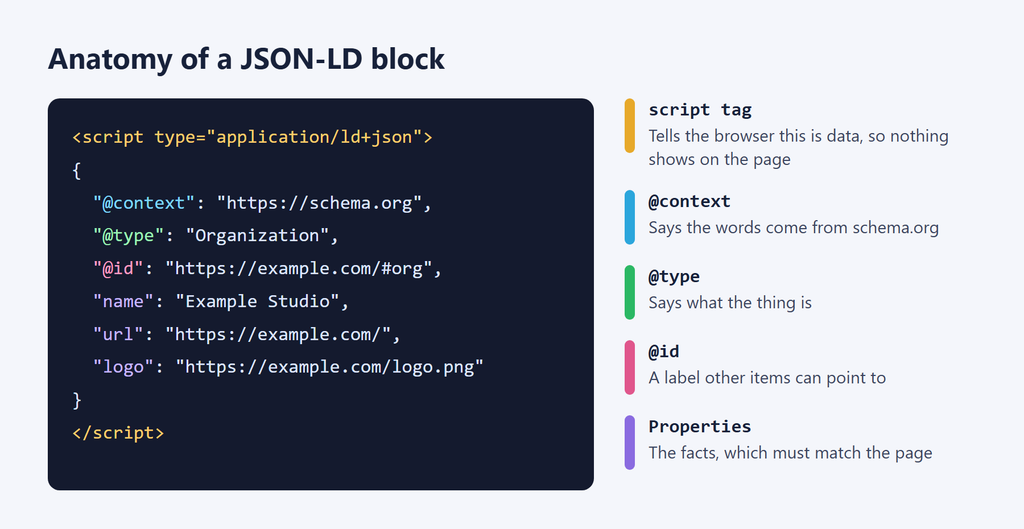
- @context tells the reader you’re using schema.org words.
- @type says what the thing is.
- @id is an optional label, so other items can point to this one.
- @graph holds several items in one block.
This one goes on your home page. It describes your business and your website, and it links them with @id:
<script type="application/ld+json">
{
  "@context": "https://schema.org",
  "@graph": [
    {
      "@type": "Organization",
      "@id": "https://example.com/#org",
      "name": "Example Studio",
      "url": "https://example.com/",
      "logo": "https://example.com/logo.png",
      "sameAs": [
        "https://www.linkedin.com/company/example-studio"
      ]
    },
    {
      "@type": "WebSite",
      "@id": "https://example.com/#website",
      "url": "https://example.com/",
      "name": "Example Studio",
      "publisher": {
        "@id": "https://example.com/#org"
      }
    }
  ]
}
</script>
And this one is for a blog post:
<script type="application/ld+json">
{
  "@context": "https://schema.org",
  "@type": "Article",
  "headline": "How to Fix Uneven Card Heights",
  "image": [
    "https://example.com/images/cards.jpg"
  ],
  "datePublished": "2026-11-05T09:00:00+00:00",
  "dateModified": "2026-11-05T09:00:00+00:00",
  "author": {
    "@type": "Person",
    "name": "Jane Doe",
    "url": "https://example.com/about/jane/"
  }
}
</script>
Swap in your own details. If you don’t want to type it by hand, a free schema markup generator gives you a starting block.
The one rule you can’t skip: mark up only what people can see. Google’s structured data guidelines say the same thing. If the JSON-LD says 4.8 stars, those stars must be on the page.
Step 2: Where to Put JSON-LD (Head or Body?)
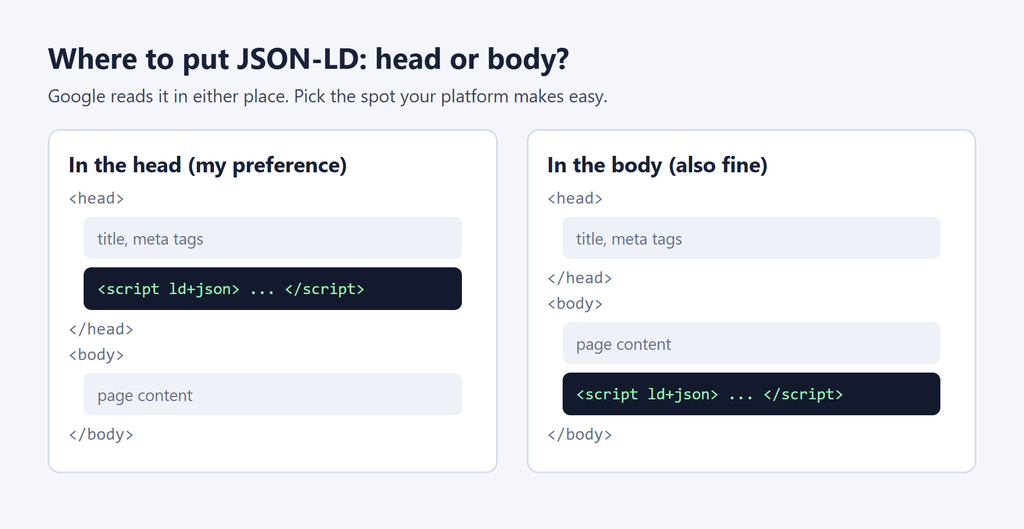
Both work. Google reads JSON-LD in the <head> or the <body>, so pick whatever your platform makes easy. I prefer the head because it’s tidy, but body placement is fine when a template only gives you that spot.
Before you paste anything, check what’s already there. Open your page, press Ctrl+U to view the source, and search for ld+json. Your theme or SEO plugin may already print Article or Organization markup, and that’s how pages end up with two versions of the same thing.
You can use one block with @graph or several separate blocks. Both are valid. What matters is that the same business isn’t described twice with different details.
You might also like: Page Builders vs Custom Code in WordPress
Step 3: Add JSON-LD Schema Markup on Your Platform (No Plugin)
This is the part most guides skip, so here’s each platform in turn.

Photo by Christopher Gower on Unsplash
1. Plain HTML Sites
Paste the block just before the closing </head> tag of the page, then upload the file. That’s the whole job.
2. WordPress (functions.php)
Add this to your child theme’s functions.php. Using a child theme means a theme update won’t wipe it. Back up first, because a PHP typo here can take the site down.
add_action( 'wp_head', function () {
	if ( ! is_single() ) {
		return;
	}

	$id     = get_queried_object_id();
	$schema = array(
		'@context'      => 'https://schema.org',
		'@type'         => 'Article',
		'headline'      => wp_strip_all_tags( get_post_field( 'post_title', $id ) ),
		'datePublished' => get_the_date( 'c', $id ),
		'dateModified'  => get_the_modified_date( 'c', $id ),
		'author'        => array(
			'@type' => 'Person',
			'name'  => get_the_author_meta( 'display_name', get_post_field( 'post_author', $id ) ),
		),
	);

	$image = get_the_post_thumbnail_url( $id, 'full' );
	if ( $image ) {
		$schema['image'] = array( $image );
	}

	$flags = JSON_HEX_TAG | JSON_UNESCAPED_SLASHES | JSON_UNESCAPED_UNICODE;
	echo '<script type="application/ld+json">' . wp_json_encode( $schema, $flags ) . '</script>' . "\n";
} );
Every post now gets its own title, dates, author and image automatically. If Yoast or Rank Math already prints Article markup, don’t add this as well. Use the hook for a type your plugin doesn’t cover.
3. Shopify
Go to Online Store, then Themes, then Edit code. Many themes already print product markup, so check the source first. If yours doesn’t, add Shopify’s structured data filter to your product section:
<script type="application/ld+json"> {{ product | structured_data }}</script>
For a custom block, pass values through the json filter. It adds the quotes and escapes the text for you, so a product title with a quote mark won’t break your code:
"name": {{ product.title | json }},
4. Webflow, Wix and Squarespace
You don’t need code access here. Each one has a box for it.
| Platform | Where to paste it | Good to know |
|---|---|---|
| Webflow | Page settings, Custom code, Inside head tag | Needs a paid Site or Workspace plan |
| Wix | Pages & Menu, SEO basics, Advanced SEO, Structured Data Markup | Under 7,000 characters, up to five per page |
| Squarespace | Page settings, Advanced, Page Header Code Injection | Core plan or higher, plus some legacy plans |
5. Next.js
Render a normal script tag inside your page component. The Next.js JSON-LD guide recommends this approach, and the replace part matters. JSON.stringify alone doesn’t protect you from a script injection if your data contains HTML.
export default async function Page({ params }) {
  const { slug } = await params
  const post = await getPost(slug)

  const jsonLd = {
    '@context': 'https://schema.org',
    '@type': 'Article',
    headline: post.title,
    datePublished: post.publishedAt,
  }

  return (
    <article>
      <script
        type="application/ld+json"
        dangerouslySetInnerHTML={{
          __html: JSON.stringify(jsonLd).replace(/</g, '\\u003c'),
        }}
      />
      <h1>{post.title}</h1>
    </article>
  )
}
6. Google Tag Manager
Stuck with a platform you can’t edit? Add a Custom HTML tag, paste your block, and publish the container. Google documents this method and suggests using variables to read values from the page, so the markup can’t drift away from your content.
Treat it as a backup. The markup only exists after JavaScript runs, and Google warns that generated Product markup can make Shopping crawls less frequent and less reliable. For stores, put it in the HTML.
Step 4: Keep It Dynamic, Not Hard-Coded
A hard-coded block is fine for your home page. On a product or blog post, it goes stale fast. You change a price, the JSON-LD still shows the old one, and now your markup doesn’t match your page.
The fix is to pull values from the same place the page gets them. That’s what the examples above do: WordPress functions, Liquid objects, your Next.js data and GTM variables. Change the content once and both update together.
Dates need the ISO 8601 format, like 2026-11-05T09:00:00+00:00. Use absolute URLs too, not paths like /logo.png.
Step 5: Test Your JSON-LD
Never trust markup you haven’t tested. I run three checks, and each one catches something different:
- Google’s Rich Results Test: shows which rich results the live page can get. Test the URL, not only the code, because it also shows you markup added by your theme.
- Schema Markup Validator: checks all schema.org types, including ones Google has no rich result for.
- A quick paste check: while I’m still writing a block, I use this free schema validator we built at Soft Learn Hub. It flags syntax errors, misspelled properties and missing required fields, and pasted code stays in your browser.
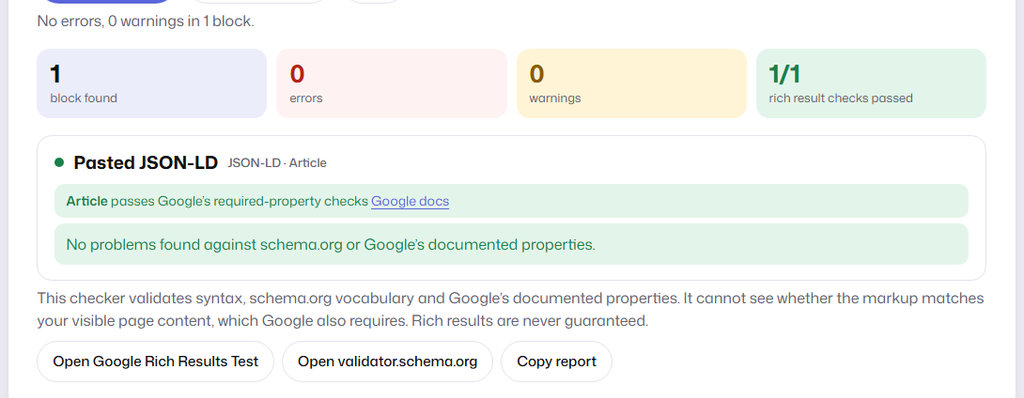
The Article example from Step 1 in the validator: 0 errors, 0 warnings.
After it goes live, watch the rich result reports in Google Search Console. They’ll tell you if a later change breaks something.
8 Common JSON-LD Mistakes and Quick Fixes
I’ve made a few of these myself, including number four. One site-wide business block on my site used two properties that don’t exist on that type, and a single audit flagged 134 pages because of it. Hand-written code needs testing too.
| Mistake | Quick fix |
|---|---|
| 1. Marking up things visitors can’t see | Add it to the page or remove it from the markup |
| 2. Plugin and manual code both print the same type | Keep one, and switch off the other |
| 3. A trailing comma or curly quotes from Word | Write it in a code editor and run a validator |
| 4. Properties that don’t exist on your type | Check the type’s page on schema.org |
| 5. Required properties missing | Read Google’s page for that feature |
| 6. Made-up ratings or reviews | Use real ones or leave them out |
| 7. Relative URLs or wrong date formats | Use full URLs and ISO 8601 dates |
| 8. Prices and dates that never update | Pull values from your CMS |
Does JSON-LD Help in AI Search?
Honestly, less than many people claim.
Google’s AI guide says structured data isn’t required for its generative AI features, and there’s no special schema to add. It still recommends structured data for rich results. Microsoft sounds warmer. Search Engine Land reported in 2025 that Bing’s Fabrice Canel said schema helps its LLMs understand content.

Photo by Shubham Dhage on Unsplash
My take: JSON-LD won’t get you cited on its own. It removes guesswork about who you are and what the page is, and that’s useful. But clear answers on the page do far more. If that’s your goal, read this guide on AI search visibility next.
You might also like: SEO in 2026: How to Get Website Traffic
Result
After you’ve done this, your site should have:
- Markup that matches what’s on each page
- No duplicate items from your theme or plugins
- Values that update when your content does
- No plugin in the way when you need something custom
It’s a small job, but it gives you control over how your site describes itself.
FAQ
What is JSON-LD schema markup?
It’s structured data written as JSON inside a script tag. It uses the schema.org vocabulary to tell search engines what a page is about, such as an article, product or business, without changing how the page looks.
Can I add JSON-LD without a plugin?
Yes. JSON-LD is only a script block, so you can paste it into your HTML, a theme file, a platform’s custom code box, or a Google Tag Manager tag. No plugin is needed on any platform.
Should JSON-LD go in the head or the body?
Either works for Google. The head is tidier, but the body is fine if that’s the only spot your template gives you.
Does JSON-LD improve rankings?
Not directly. Structured data makes a page eligible for rich results and helps search engines understand it. It’s not a ranking shortcut, and Google doesn’t guarantee a rich result.
Is FAQ schema still worth adding?
Not for Google rich results, because they stopped on 7 May 2026. FAQPage is still valid schema.org markup, so it does no harm when the questions are visible on the page. Just don’t expect a rich result from it.
Conclusion
You don’t need a plugin to add JSON-LD schema markup. Decide what the page is, write a small block that matches it, paste it in the right spot for your platform, and test the live URL.
Start with one page today. Your home page is a good choice, because the Organization example above only takes a few minutes to adapt.