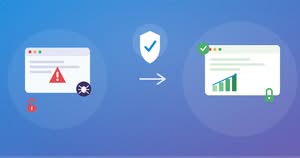

Every WordPress website needs an SSL certificate today. Without one, browsers mark your site as “Not Secure.” As a result, visitors lose trust, and Google ranks your pages lower.
The good news is simple. You no longer need to pay for SSL. Most hosting providers now include a free certificate with every plan. In this guide, we will show you three ways to get a free SSL certificate for your WordPress website in 2026.
Why Your WordPress Site Needs SSL
SSL (Secure Sockets Layer) encrypts the data that travels between your website and your visitors. Without it, anyone can intercept passwords, payment details, and personal information.
SSL also affects your business in three direct ways:
- Trust: Browsers show a padlock icon for secure sites. They flag unsecured sites as “Not Secure,” which scares visitors away.
- SEO: Google confirmed HTTPS as a ranking signal. A secure site therefore has a small but real edge over an unsecured one.
- Functionality: Payment gateways, and login systems like Google or Facebook, require HTTPS to work at all.
Because of this, SSL is no longer optional. It is a baseline requirement for any WordPress site in 2026.
Method 1: Check If Your Host Already Includes Free SSL
Most hosting providers bundle a free Let’s Encrypt SSL certificate with every plan today. Consequently, this is the first thing to check before you install a plugin or buy anything.
You might be interested in: 5 important facts about your website hosting
Providers that include free SSL by default:
- Bluehost – free SSL on all shared and WordPress plans
- SiteGround – free Let’s Encrypt wildcard SSL on every plan
- Hostinger – free unlimited SSL certificates
- IONOS – free wildcard SSL included
- DreamHost – free unlimited SSL on all plans
To check, log in to your hosting dashboard and look for an “SSL/TLS” or “Security” section. If your host lists Let’s Encrypt or AutoSSL as active, your certificate is already installed. In that case, you can skip straight to Method 3 to force HTTPS across your site.
If your dashboard shows no active certificate, contact your host’s support team first. Many providers will enable it for you in minutes, at no cost.
Method 2: Enable SSL Through cPanel (AutoSSL)
If your host uses cPanel, you can often issue a free certificate yourself.
- Log in to your hosting cPanel.
- Find the Security section and click SSL/TLS Status.
- Select the domain you want to secure.
- Click Run AutoSSL.
cPanel will then request a free Let’s Encrypt certificate and install it automatically. This process usually takes a few minutes, and the certificate renews itself every 90 days without any action from you.
Method 3: Use the Really Simple SSL Plugin
Once a certificate is active on your server, WordPress still needs to know to use it. This is where the Really Simple SSL plugin helps. It detects your certificate and switches your entire site to HTTPS in one click.

Here’s how to set it up:
- Go to Plugins > Add New in your WordPress dashboard.
- Search for Really Simple SSL and click Install Now, then Activate.
- The plugin will scan your site and detect whether SSL is available.
- Click Activate SSL when prompted.
The plugin then handles the HTTP to HTTPS redirect automatically. It also fixes most mixed-content warnings, which happen when a secure page still loads images or scripts over HTTP.
Method 4: Force HTTPS Manually via .htaccess
In some cases, the plugin redirect does not fully apply, especially on custom server configurations. When that happens, you can force the redirect directly in your .htaccess file.
Back up your .htaccess file first. Then add this code near the top, and replace yourdomain.com with your actual domain:
RewriteEngine On
RewriteCond %{HTTPS} off
RewriteRule ^(.*)$ https://yourdomain.com/$1 [R=301,L]
Here is what each line does:
- RewriteEngine On turns on Apache’s URL rewriting engine.
- RewriteCond %{HTTPS} off checks whether the current request is not already using HTTPS.
- RewriteRule ^(.*)$ … [R=301,L] redirects every matching URL to its HTTPS version with a permanent (301) redirect, then stops processing further rules.
A 301 redirect matters here. It tells Google the move is permanent, so your existing rankings transfer to the secure version of your pages instead of resetting.
Fixing Mixed Content Warnings
After you switch to HTTPS, you may still see a “Not Fully Secure” warning in your browser. This happens when some images, scripts, or links on the page still point to http:// instead of https://.
To fix this:
- Install a plugin like Better Search Replace.
- Search your database for
http://yourdomain.com. - Replace it with
https://yourdomain.com. - Run the search in “Dry Run” mode first to confirm the changes, then run it live.
This step cleans up old image links and internal URLs that were saved before you activated SSL.
Frequently Asked Questions
Is SSL really free for WordPress sites in 2026?
Yes. Nearly every major host now includes a free Let’s Encrypt SSL certificate with every hosting plan. You rarely need to buy one separately unless you require an Extended Validation (EV) certificate for a large business or financial site.
Do I still need a plugin if my host already provides SSL?
Not always. If your host issues the certificate and forces HTTPS at the server level, a plugin is optional. However, a plugin like Really Simple SSL adds a safety net and fixes mixed-content issues automatically.
Will switching to HTTPS hurt my SEO?
No, as long as you use a 301 redirect. Google treats HTTPS as the same content, just moved to a secure URL, so your rankings carry over.
How often does a free SSL certificate renew?
Let’s Encrypt certificates last 90 days. Most hosts and plugins renew them automatically, so you do not need to reissue anything manually.
Final Thoughts
Getting a free SSL certificate for your WordPress website takes only a few minutes in 2026. Start by checking your hosting dashboard, since most providers already include one. If not, cPanel’s AutoSSL or the Really Simple SSL plugin will get you covered quickly. Finally, confirm your redirects work and clean up any mixed content, so your entire site loads securely from start to finish.
You might be interested in this topic as well:
1. BEST SEO PLUGINS FOR WORDPRESS WEBSITES
2. HOW TO DOWNLOAD SHUTTERSTOCK IMAGES FOR FREE?
3. FREE WEB DESIGN RESOURCES WEBSITE TO BOOKMARK