


Quick answer: The fastest way to remove a background from a photo is to upload it to an AI background remover such as remove.bg, Photoroom, or Adobe Express. These tools use AI image segmentation to detect the subject and erase the background automatically. Most jobs take less than 10 seconds and require no design skills.
Removing a background used to mean opening Photoshop and manually tracing around a subject with the pen tool. That process was slow, and it punished anyone who was not a trained designer. AI has changed that completely. Today, background removal is a one-click task, and the results often look better than a manual edit.
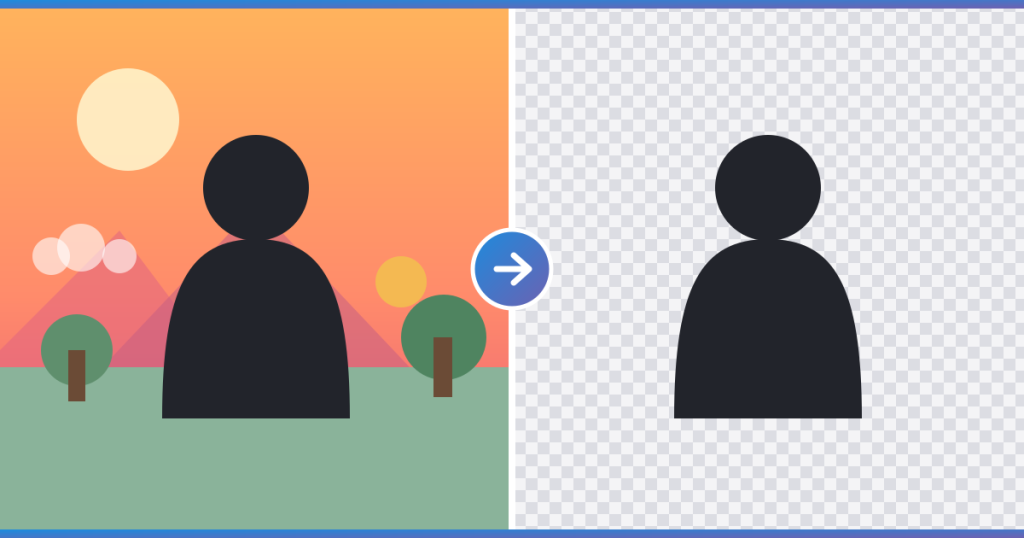
In this guide, you will learn how AI background removal works, which tools are worth using in 2026, and how to get clean results even on tricky images like hair, fur, or glass.
Why You Might Need to Remove a Background
Bloggers, online sellers, and marketers all run into the same problem: the image they have is not the image they need. A few common situations where background removal helps include:
- Product photography. Marketplaces like Amazon and Etsy require white or transparent backgrounds for listings.
- Blog and social graphics. A clean subject on a transparent background blends into any layout, unlike a photo with a busy backdrop.
- Profile and team photos. Swapping a cluttered background for a solid color instantly looks more professional.
- Design mockups. Designers often need an isolated subject to place onto a new background or template.
Because these use cases are so common, a whole category of AI tools has grown around solving this one problem well.
How AI Background Removal Actually Works
Modern background removers rely on a technique called image segmentation. A neural network scans every pixel in the photo and classifies it as either “foreground” (the subject) or “background” (everything else). Advanced tools go a step further and use a process called matting, which calculates a transparency value for each pixel instead of a hard yes-or-no cutoff. This is exactly what makes strands of hair, fur, and semi-transparent objects like glass look natural after the background is removed, instead of leaving a jagged, cut-out edge.
This is also why some free tools handle a simple product photo well but struggle with a portrait against a busy background. The underlying model matters as much as the interface.
The Best AI Background Remover Tools in 2026
We compared the current leading tools based on accuracy, ease of use, and pricing.
1. Remove.bg
Remove.bg remains one of the most reliable options for a single, quick removal. It works well on people and products, and it offers a solid free tier plus an API for developers who need to automate the process at scale.
2. Photoroom
Photoroom is built for online sellers. Beyond removing the background, it lets you drop your product onto a template, add shadows, and batch-process multiple images at once.
3. Adobe Express
Adobe Express uses the same AI engine that powers Photoshop, so it delivers Adobe-level accuracy in a free, browser-based tool. It is a natural fit if you are already using other Adobe products.
4. Canva
If you are already designing a graphic, presentation, or thumbnail, Canva’s background remover saves you a trip to another app. It is less precise on complex edges but fast enough for everyday content.
5. Clipdrop
Clipdrop pairs background removal with a wider set of AI image tools and offers a developer-friendly API, which makes it a good choice if you need to plug removal into your own workflow.
6. Pixelcut
Pixelcut is a mobile-first option, useful if you edit product photos straight from your phone before uploading to an online store.
How to Remove a Background in 3 Steps
- Upload your image. Drag and drop your photo into the tool of your choice.
- Let the AI process it. The tool automatically detects the subject and strips the background, usually within a few seconds.
- Download or replace the background. Export a transparent PNG, or use the tool’s built-in editor to add a new solid color, gradient, or scene.
That is the entire workflow. No manual selection, and no prior design experience required.
Tips for Better Results
- Use good lighting. A well-lit, high-contrast subject is easier for the AI to separate cleanly.
- Avoid clothing that matches the background color. This can confuse the edge detection.
- Check hair and fine edges closely. If a free tool leaves rough edges, a paid plan with matting technology usually fixes it.
- Keep a high-resolution original. Compression artifacts make edges harder for the AI to read accurately.
Frequently Asked Questions
Is it free to remove a background from an image?
Yes. Most tools, including remove.bg, Photoroom, and Canva, offer a free tier for standard resolution images. Higher resolution downloads or bulk processing typically require a paid plan.
Which AI tool removes backgrounds most accurately?
Remove.bg and Adobe Express currently produce the most consistent results on hair and fine detail, thanks to their use of AI matting rather than basic segmentation.
Can I remove a background without Photoshop?
Yes. AI background removers do the job in seconds directly in your browser, and no Photoshop skills or software installation are required.
What file format keeps the background transparent?
Export your image as a PNG. Unlike JPG, PNG supports transparency, so the removed background stays see-through when you place the image elsewhere.
Do AI background removers work on logos and illustrations?
They can, but results are more reliable on photos of people, products, and animals. For flat vector logos, a dedicated vector editor usually gives cleaner results.
Final Thoughts
Removing a background is no longer a task that requires design software or editing skills. With tools like remove.bg, Photoroom, and Adobe Express, you can isolate any subject in seconds and drop it onto a new background, template, or product listing. Try a couple of the tools above on the same image and compare the edges. In most cases, the free tier will already be good enough for your blog, store, or social post.
You might also find these guides useful:
Free Web Design Resources Website to Bookmark
Best SEO Plugins for WordPress Websites
How to Download Shutterstock Images for Free



Leave A Reply